
This is a terrible film. There. That pretty much sums it up. I rated it 2/10 on IMDB and although I didn’t leave the cinema before the film had ended I certainly fell asleep and did not care about anything in this film. It’s terrible. Such a shame. They could have made an amazing story, but no. They did not.
Broadband Change
A couple of months ago a van was blocking my car which was parked by the side of the road. It turned out to be people installing fibre optic cables (invented in Harlow) to the telegraph poles in the village so that people can get fibre to property. Until then the village had FTC, which is fibre to cabinet and then metal wire to houses. This meant I was getting a bandwidth of about 74Mb/s, Upload was limited to around 10Mb/s. This is not a bad bandwidth, but at times it does need to be better, especially when there are around five devices that need updating with new software.
About three weeks after I saw these fibre installers I had an email offer to upgrade my broadband to FTP – fibre to property. I jumped on the chance. I ordered the new system and then just had to wait for my install date. Fortunately for me the install date was scheduled for a day when I am not in work. There was more of a problem as far as I was concerned which was where will the new modem/router go in the house? The house has been set up with the router in a specific place that allows wi-fi throughout the whole building and is the hub of all the wired devices. There are around ten devices wired into the LAN and there are also four switches that run the traffic near those devices. There was a video to watch which seemed to imply that I can request that the modem/router goes where ever I want. I knew that wasn’t going to be the case.
I spent a while thinking about how to arrange the home network if the router could not be placed where I wanted it. Given there are switches and it’s all kinda connected so doesn’t matter which way the traffic flows I decided I could live with the router in the front room of the house, the only real problem could be wi-fi range, the back of my house is quite a distance from the front of the house. I ordered a new switch and ethernet cable to allow for network connection.
On the day of the installation I had everything ready, I knew where things were going to go and I had options if they couldn’t be placed there. I also had a new extension lead placed in the front room because there could be two extra sockets needed, also the sofa is powered but that’s for another day. I chatted with the installer. I could have the router where I wanted it but each corner put in the fibre cable would drop the bandwidth slightly. This then gave me the thoughts that perhaps the ethernet from the fibre-decoder went via the switches to the router in the middle room. This is a possible solution. The installer chap said this was possible but I’m not sure he understood the finer elements of networking. I googled while he was working and I could have done this but only if my switches are managed and allow VLAN. They might allow VLAN but they are not managed and that is a level of stuff slightly beyond my confidence level. Then, I had the genius idea of placing the router above the AV centre and this would give a slightly higher range through the house.
So, the installation went well. The system was tested and it all worked. Then the person left and I took on the task of setting all the stuff up. There’s DDNS servers to configure, ports to forward and static IPs to set up. I have a spreadsheet for most of these details along with screen shots of the settings from the old router. Obviously I also ran some bandwidth tests, just to see what sort of rates I could get.
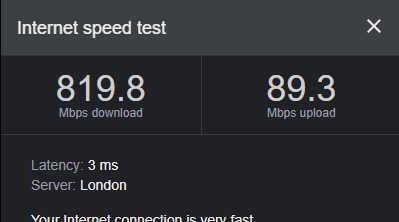
These bandwidths seem good. I don’t think there’s anything I can complain about. It took a few hours to get the router working how I wanted it. The modem router is wired into the fibre box via an ethernet cable and the router is around four metres away from that box. Then, there is an ethernet cable connecting the router to one of the switches which means I have a good stable connection for all wired devices. The switches are gigabit so the wired network has a little spare capacity and shouldn’t become blocked.
I tried to update Fortnite on the main gaming PC and it went swimmingly. The download went quicker than the computer could cope with! The download is no longer a pinch point on the network. The install time is now limited by the read/write time on the computer. This is exciting and should stop problems when multiple devices are trying to download large files. I have recently been downloading some TV Shows from Apple and I the issue there is more that the Apple server is limited rather than my download speed being a problem.
Minecraft Designs
I’ve got a project happening in Minecraft at the moment and I’ve built a railway station. I wanted to put a “town hall” elsewhere in the build and I had laid out a ground plan but I wasn’t sure how to design it or complete it. After a recent trip to the Lake District I found the perfect design – Moot Hall in Keswick. It’s iconic and gorgeous and it is just waiting to be made in Minecraft. I’ve recently spent a little time, a few hours, collecting materials and then building this hall in the space I had in the recent build. What follows are the results of the exterior. I haven’t started the interior at the moment. I’m not sure what to do for that. The actual interior is a shop and information centre, which I might try and remake.
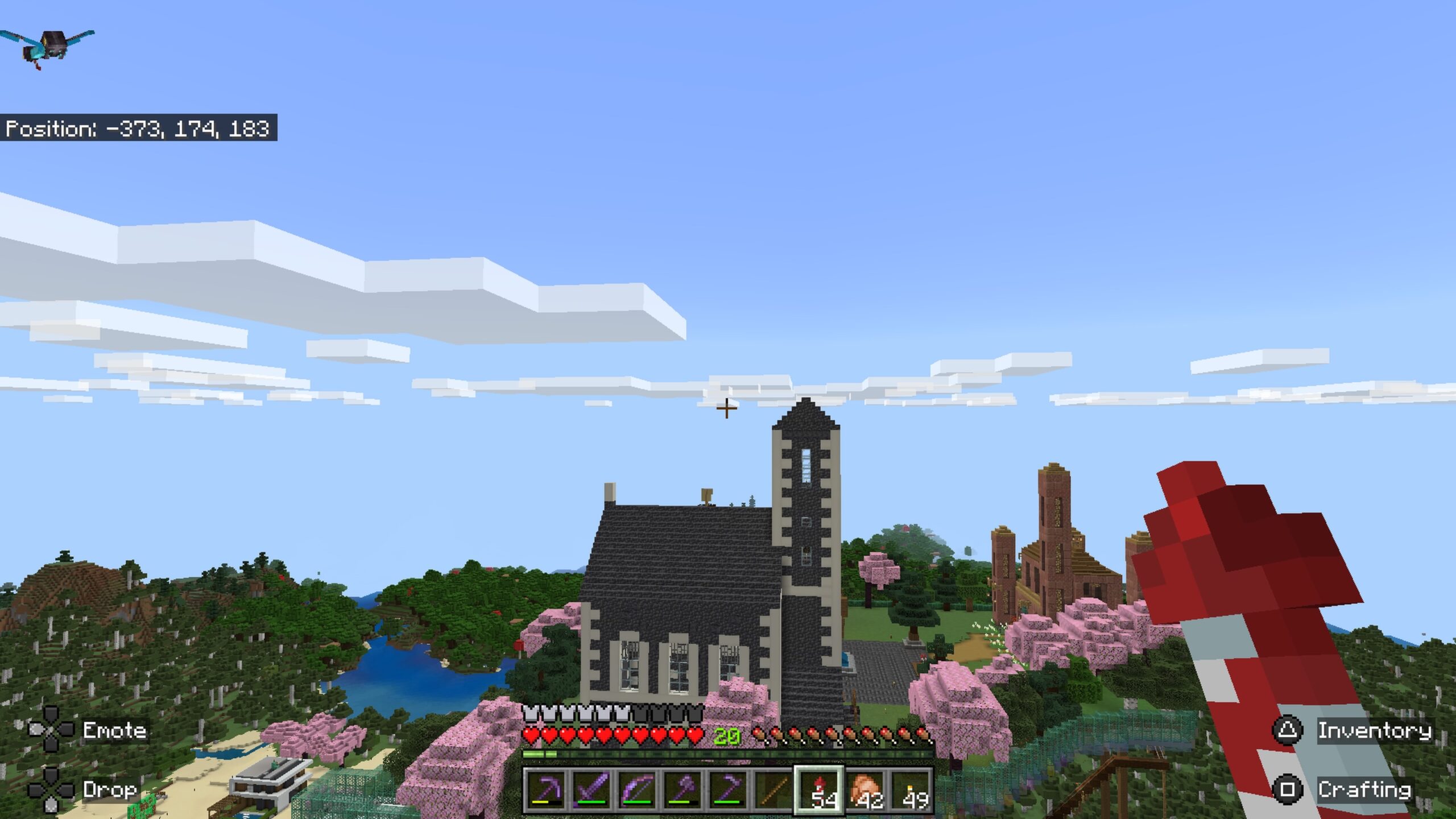
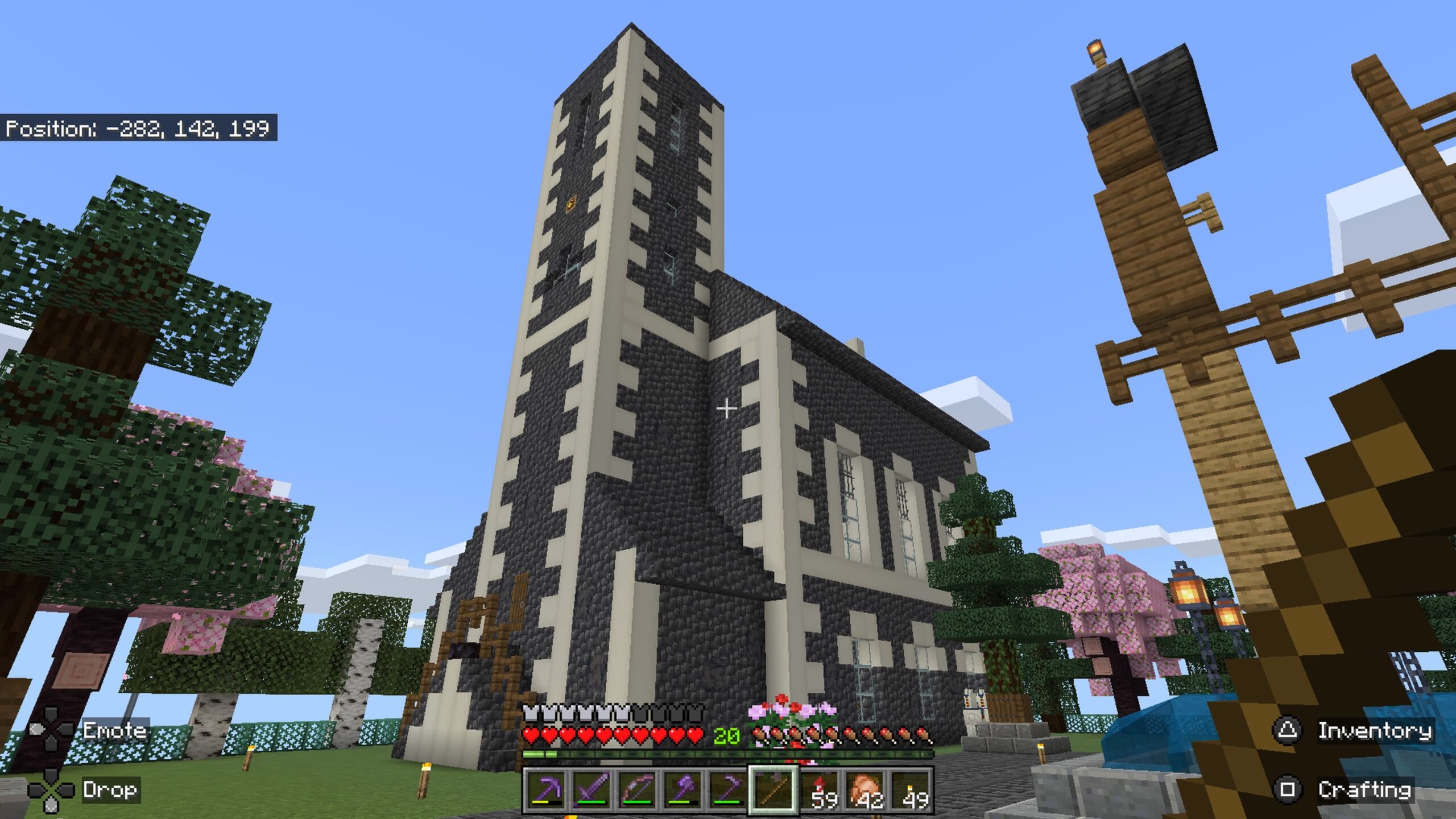
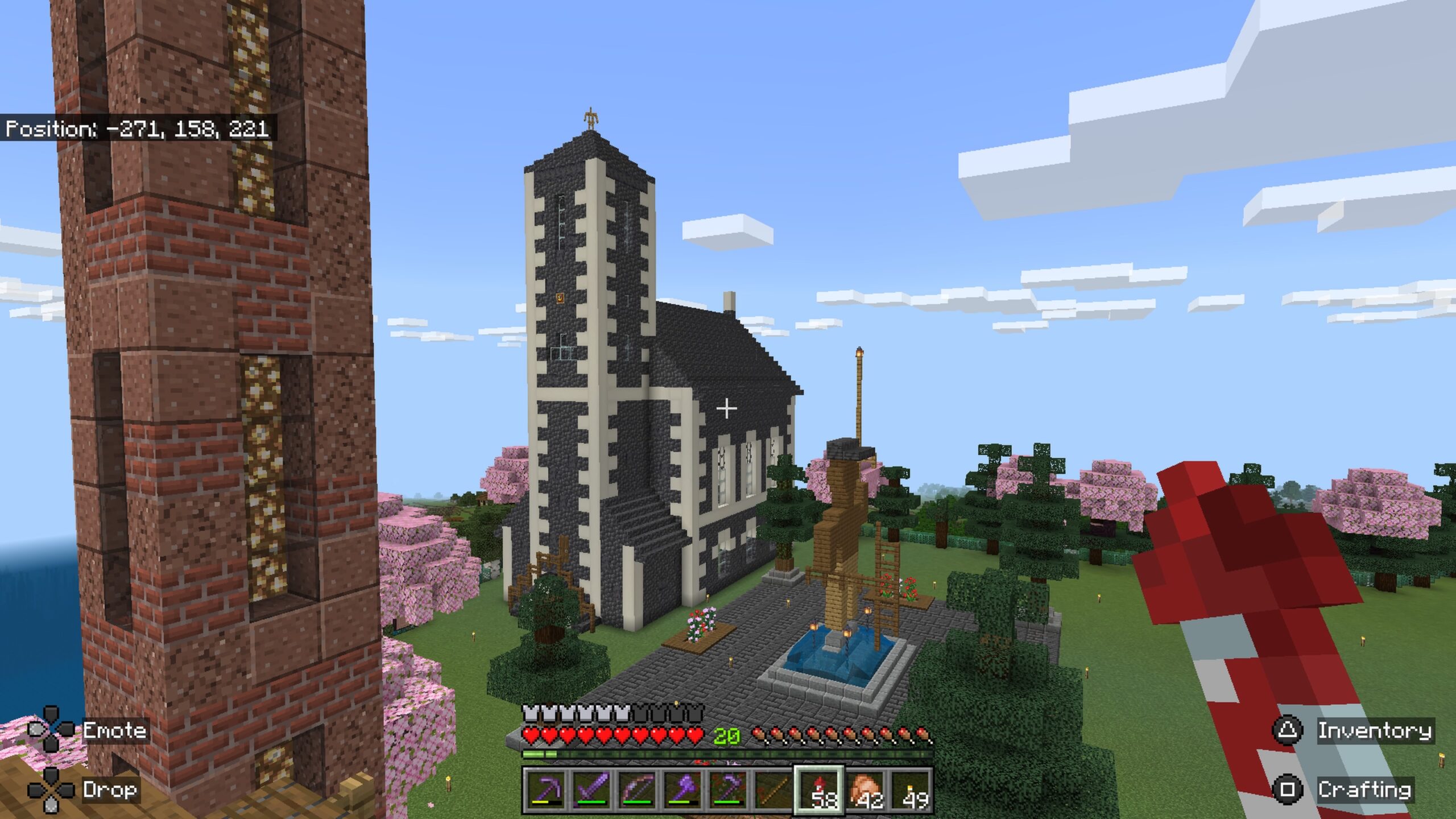
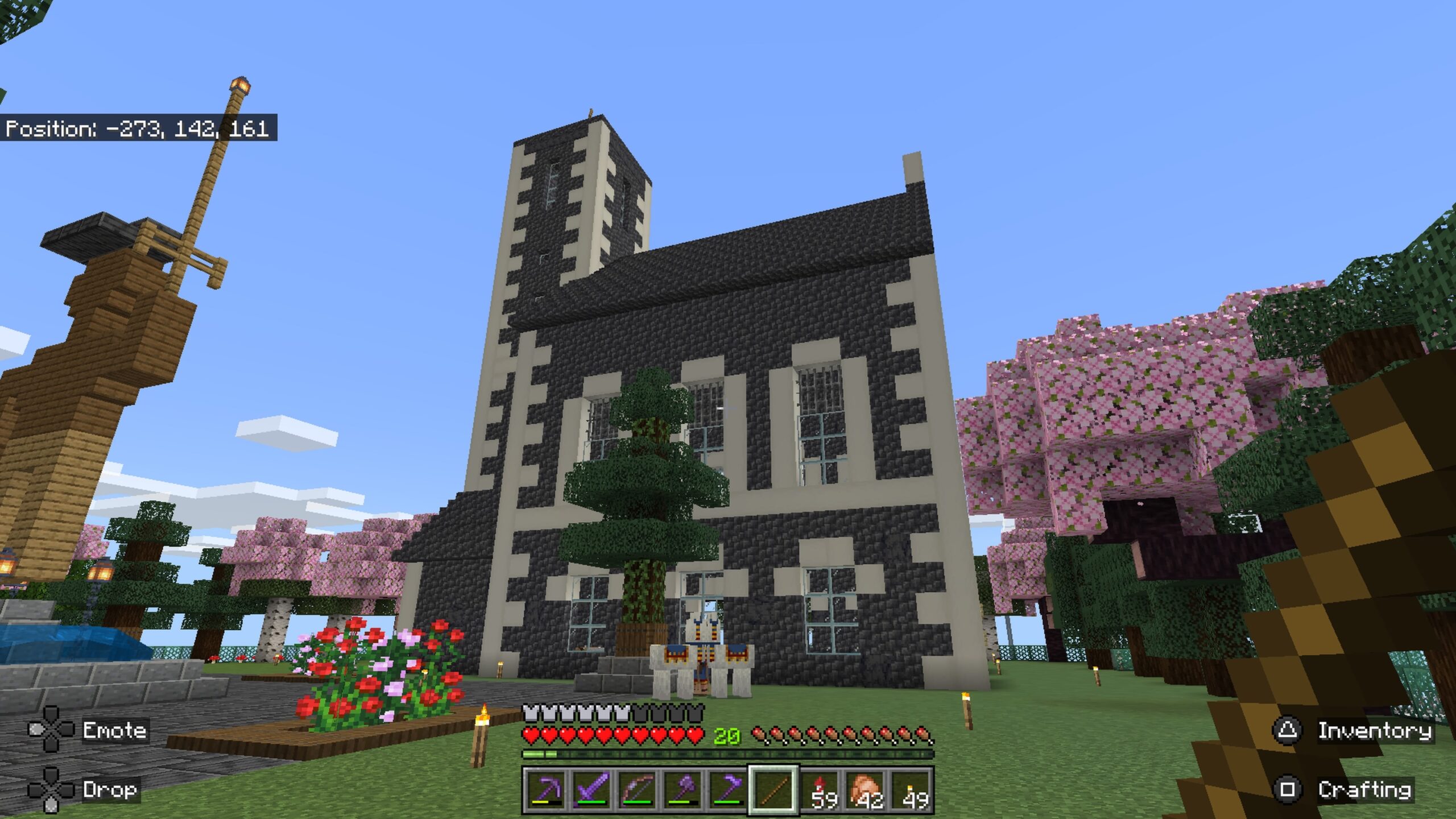
I guess you’ll want to rate this compared to the actual building. Google it, I’m not going to link anything here.
OLED Oh No!
I’m upset. For the third time in owning a Philips TV I have had one break. The first TV had a new screen fitted after a row of pixels died and then eventually a column of pixels became intermittent in that screen and I decided it was time to get a new one. That is when I bought the OLED version of the same TV. 55″ and ambilight, which I really like. The first TV led to the creation of my most popular video on YouTube:
Well, last night the new OLED broke. And in style. I was called to the front room because the TV “wasn’t working”. Normally this is a quick fix because the other people in the house don’t understand the system and so are unaware of input choice for the TV etc. It’s taken some time for them to understand the sound is created by a different box and not the TV. Anyway, I went into the room expecting to smuggly press a single button on the remote. This is not what happened. The TV wouldn’t turn on.
So, I unplugged the TV and then plugged it in again. I saw a brief cross of white pixels and then the screen died. The white standby light started blinking slowly. So, of course I tried the same thing again, this time leaving the power disconnected for longer. Same result. A search online claims it could be the power to the TV, but it is not. So now I am communicating with Philips, the TV is within warranty. It will get fixed. I will have a nice screen again. I just need to be patient.
In the meantime I have loaded some streaming apps onto my tablet to be able to watch some shows. It’s going to be a bit of a shock having to do that. I also can’t easily play my good Playstation and driving game. All of this has unbalanced me a little. Hopefully I won’t have to wait too long.
UPDATE – 5 minutes after publishing: Philips have been in touch and there is a OBR process for me to try. One Button Reset. Let’s see what happens later today when I try that out. I will update here once tried.
UPDATE – OBR did NOT work. I’ve been back in touch with Philips support and they got back to me pretty quickly with a case number and reference to a company who will come out and fix the TV.
UPDATE – The company have been in touch. They have said they have ordered the parts needed and that those parts come from the EU and so might take a time. Hopefully these parts come soon. I miss watching things on my TV. It’s frustrating. I’m having to use my 3D 1080p television that is in the dining room.
UPDATE – The company have been in touch and have told me the date they are coming to fix my television. Fortunately I am on a holiday from work and also in the country so I am able to wait for the TV to be fixed.
UPDATE – The TV has been fixed. A person came to the house on the day that the new broadband was fitted and they changed the screen and motherboard of the TV. Essentially I have a new TV. The only parts they didn’t change were the power unit and sound board. I don’t use my TV for sound. So, the box is the same but pretty much everything else is new. The fixer also used the secret maintenance menu on the TV but I wasn’t quick enough to see the code they entered to get that menu selection.
Gran Turismo Stuff
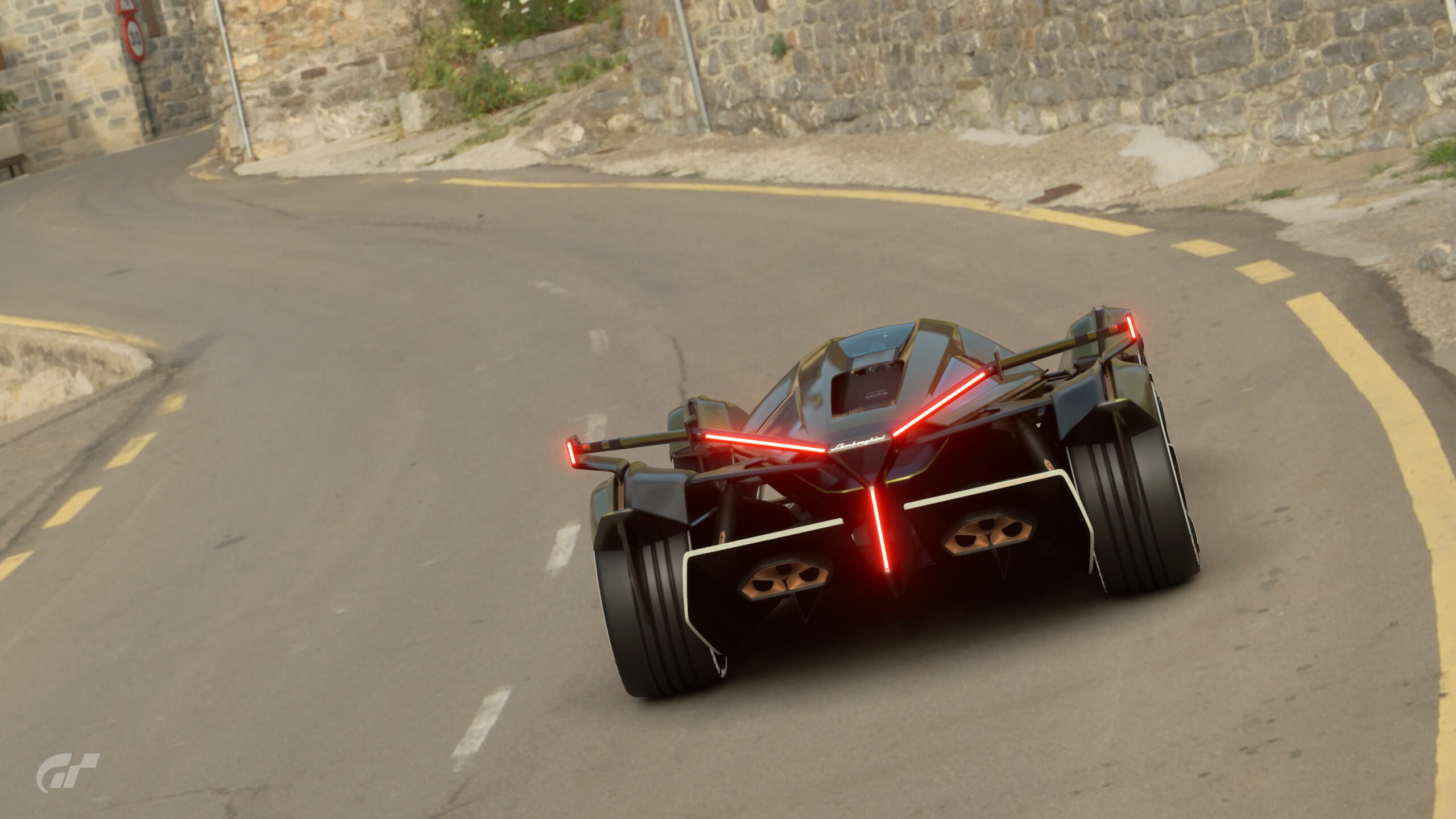
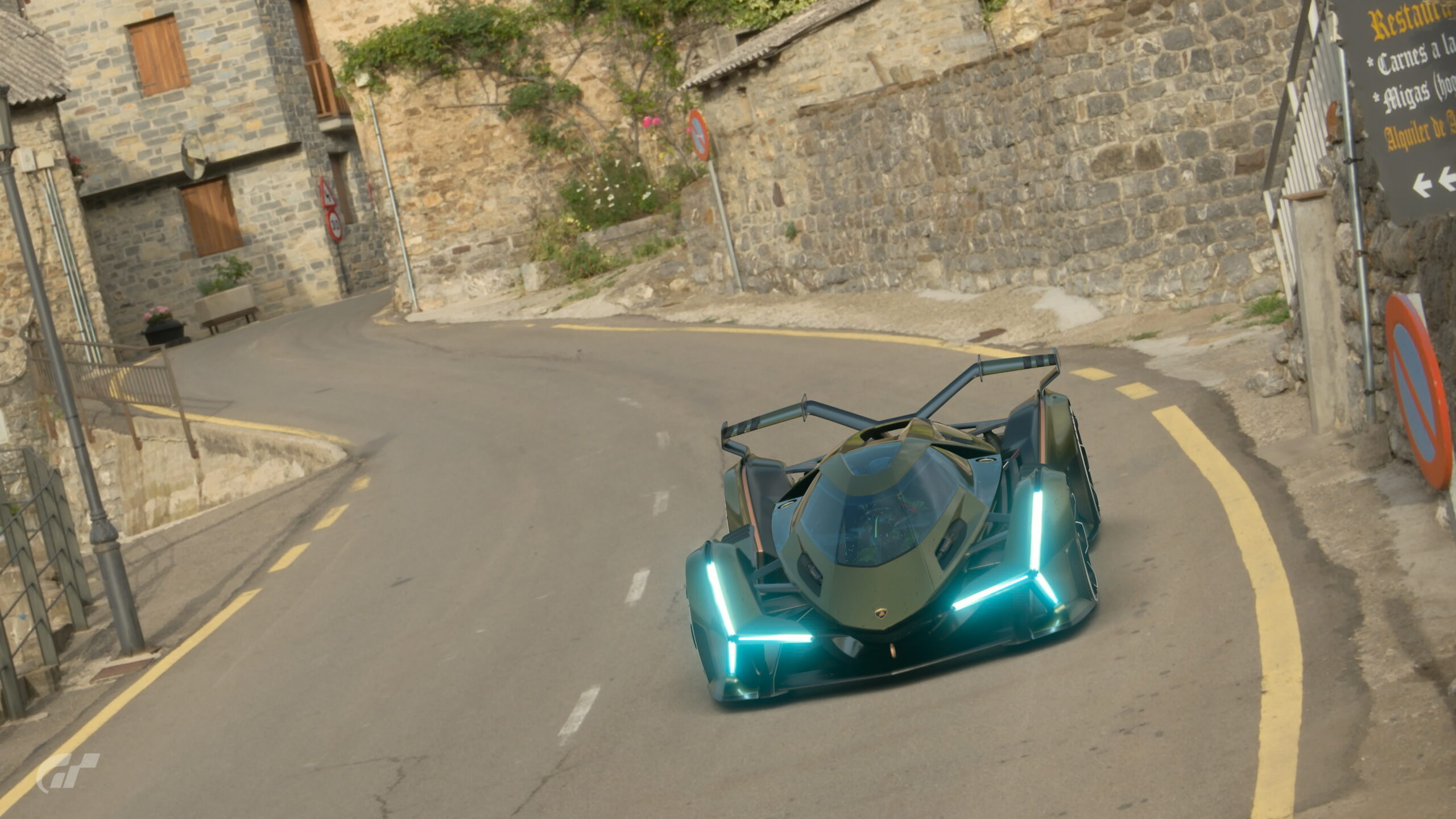
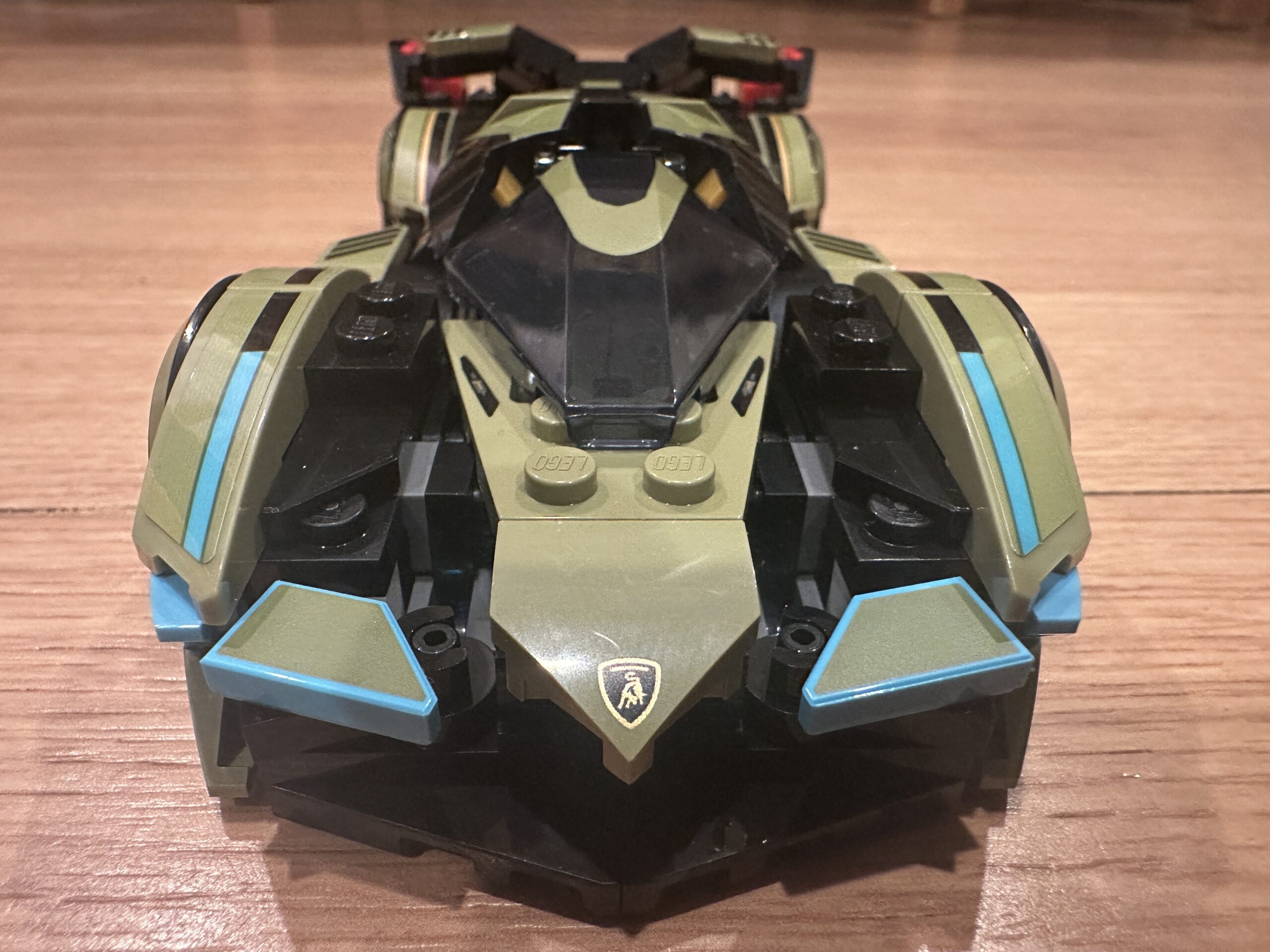
So recently the Legend got me a Lego Gran Turismo Car. I wrote about it here. I then had to play Gran Turismo and buy that actual car. Which I did. Here are some scapes photographs I took of this car.



Lego 68 – Model 76923
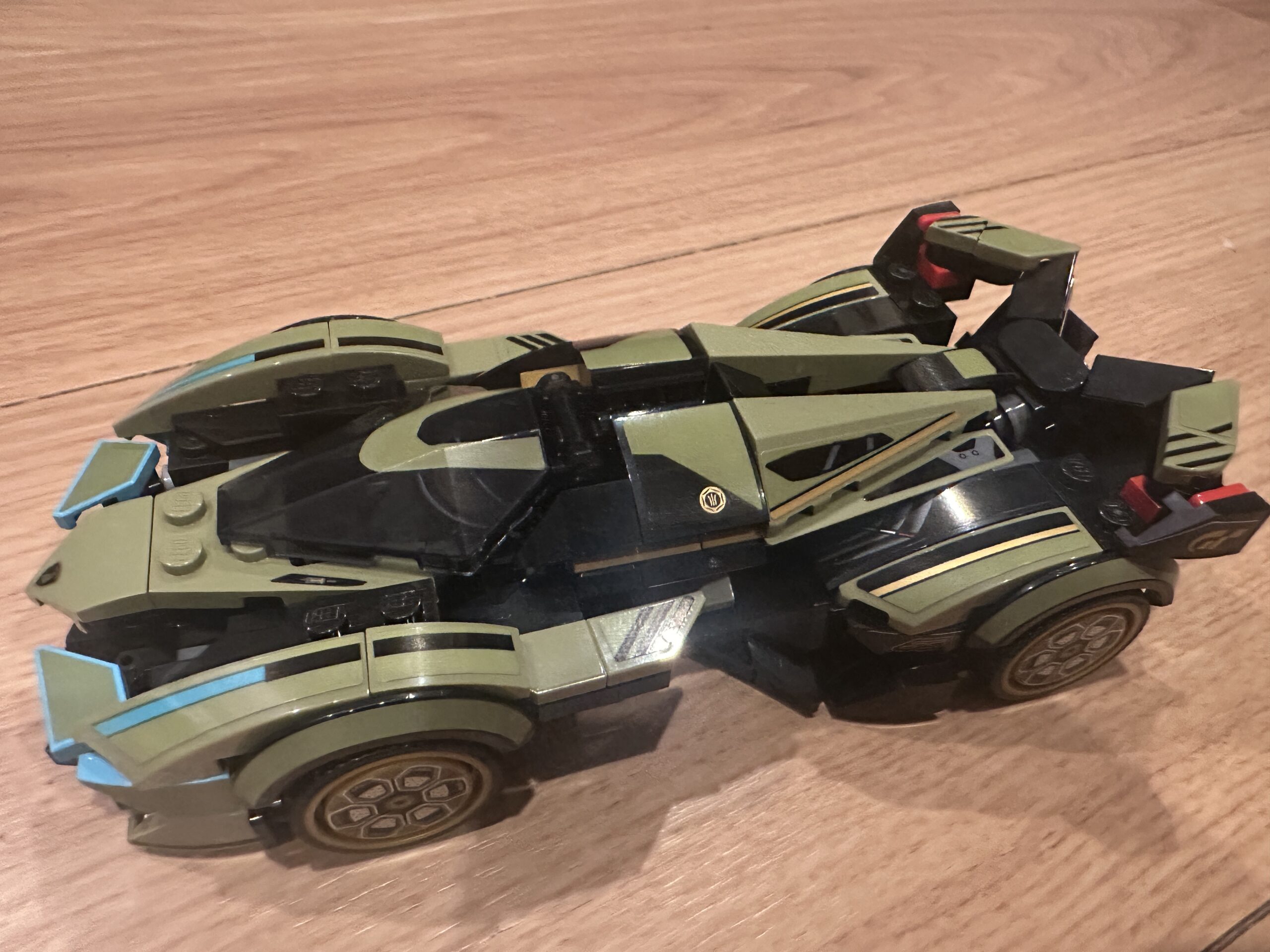
According to this website the last Lego model I made was in 2020, it has been a while! I’m not sure why it’s been this long, probably my kids no longer need my help with Lego and I haven’t bought any – where do I put it? This model was bought for my cake-day by the Legend and it super pleases me. It covers two things I really enjoy; cars and gaming. This model is the Lamborghini Lambo V12 Vision GT Super Car which exists within the game of Gran Turismo 7.
I need to go and buy the car in the game and then take some scapes photos with it. I will post those here when I have completed that side-quest.
I’m hoping the car drives well. I’ve got a few races still to complete in the standard section of GT so I will be working on that.
Celebrations
As the days roll by I approach a celebration day. CHAIR. I’ve been wondering what I should get to reward myself for this celebration day. CHAIR. I have been slowly upgrading my kit at work to make my job more comfortable/doable. I have a rising desk, second monitor, good mouse, desk fans, charging points, PlayStation, Lego ruler and pencil case, and a Darth Vader pen holder. All of these are things that please me and make the day-to-day grind more tolerable. CHAIR.
The next thing I have been thinking about, especially given recent back problems, is a suitable sitting object. CHAIR. Perhaps I could get an decent office chair that supports me well and is comfy. Something I like, something that says – ME. My current desk chair does not have wheels, squeaks and doesn’t have arms. It’s an OK chair but I’d rather have something more special.
An issue with decided what to get is that my room is used by all manner of people and even children so any CHAIR would potential need to cope with uninvited torsos. Obviously, there would be rules but people do like breaking rules, especially if they think they can get away with it.
So, buying a chair seems to me to be a very personal business. I want to know that I find it comfortable and that it is made well. I have sat on some chairs in PC World and they have been mostly shit. This could be because many people “try” them out and also, maybe, they aren’t put together with love and attention. I don’t know if the abuse they get means they feel “cheap” or they are just cheap.
I’ve also tried some chairs at Ikea and although there seem to be some promising types there we still come across the “feel cheap” side of things. So, what to do? CHAIR. I keep having intrusive thoughts. This is made worse by the fact that, at home I won a really nice, well put-together chair. It also costs that much. But. It is a nice chair. My current thoughts are to get a new chair from that company and the bring the current home chair into work. I think it will make a nice addition to my workspace.
More complications arise as the when I bought the current home gaming chair I had it delivered to work. This then required me to transport the box to my house. It almost didn’t fit in the car. It definitely doesn’t fit in the boot and so the last time I had to slide it into the back seats, which normally wouldn’t be an issue but I did have a human I needed to sit in the back as well. It was a tight squeeze and I’m not sure that human would want to be squashed like that again. So, I have to think carefully about delivery. I’m not at home during working hours, but transporting could be an issue if delivered to work!
Still Looking Lovely
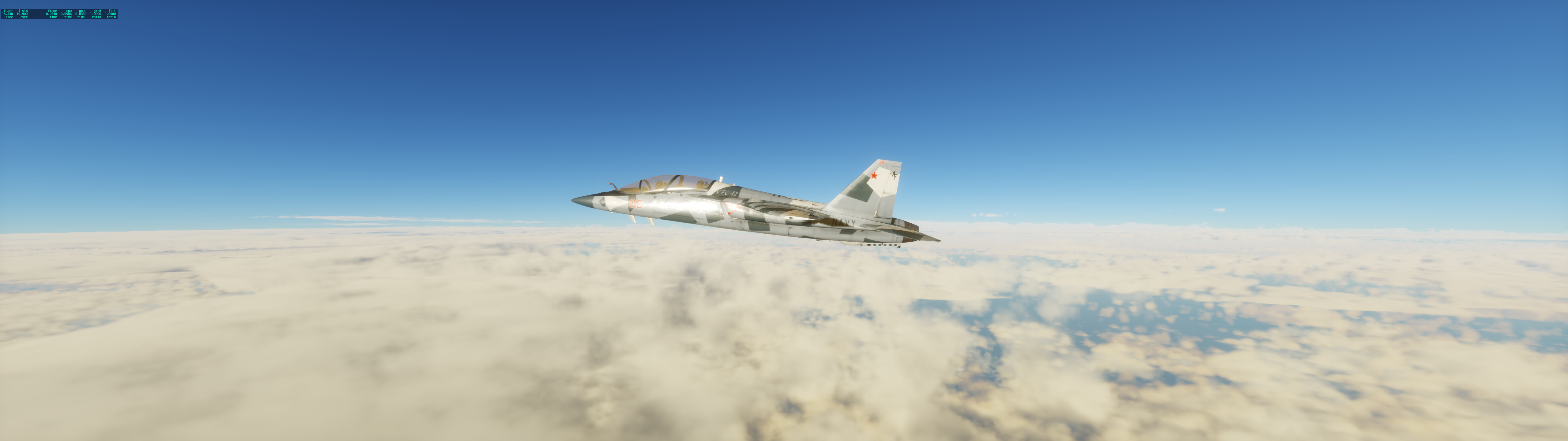
Managed a flight this morning, I flew from Oban to Cardiff. These are some pictures I took, my it looks lovely.

Recent Racing
I am currently trying to complete a few games, or at least play them more. I got Astrobot recently and it is exactly my kind of game. It’s a 3D platformer with some easy and some difficult levels. I really enjoy it, it’s like Ratchet and Clank but without the guns. I’ve also been messing around in Gran Turismo a little more recently. They have added weekly challenges to the game and so it’s a good sense of achievement to log in and complete those. I am also working my way through the licence tests and challenges bit by bit. I want to complete the Cafe Menus and that means getting credits to buy some serious cars.
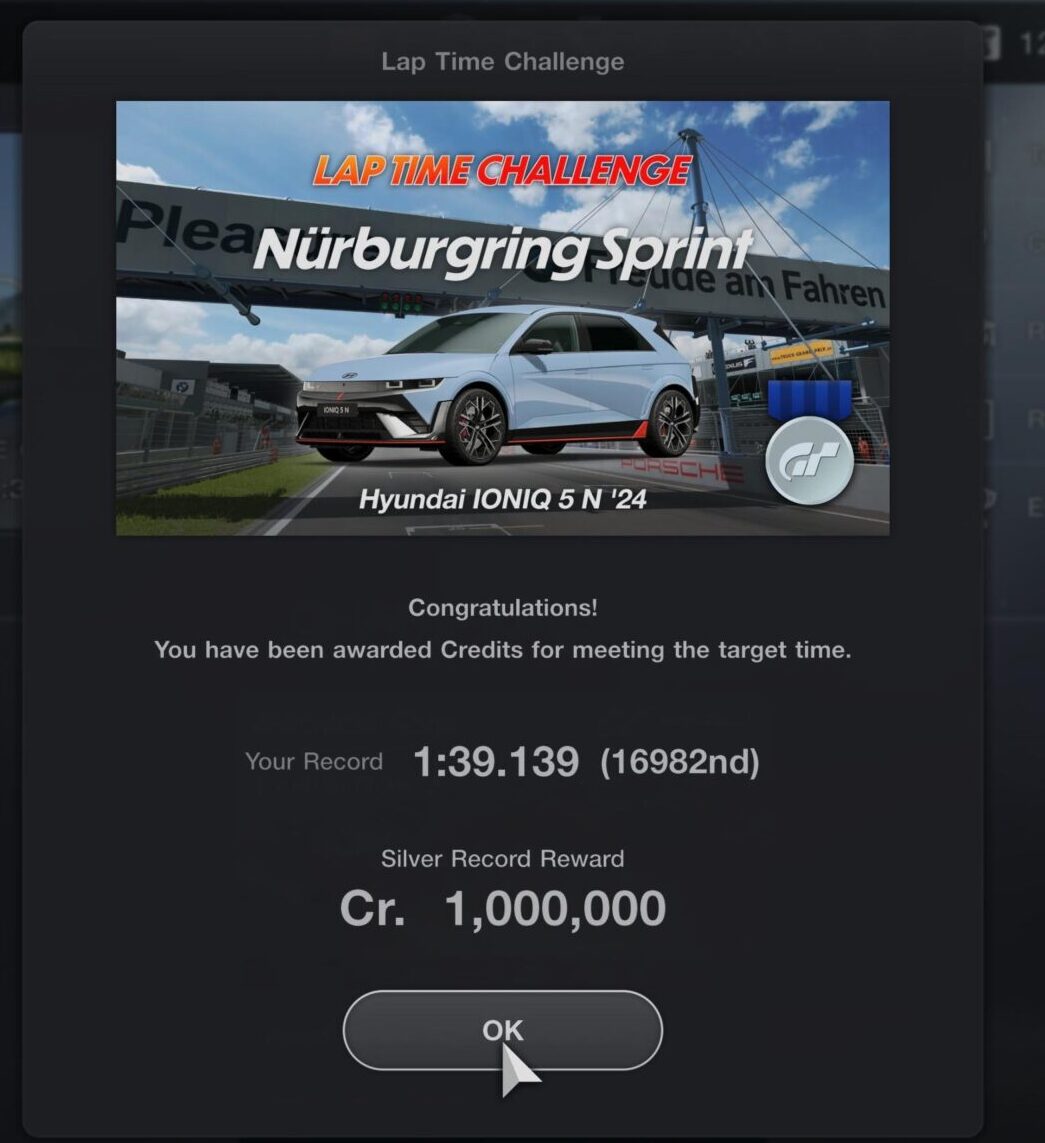
I have found a useful method for gaining credits to be the time challenges they now have in the game that change every few weeks. I spend about twenty minutes driving and I can normally get a Silver time but definitely a Bronze time within the game. I recently completed some laps of the Nurburgring GP circuit in some electric car and got a pretty good result for a worldwide competition.
Another method for gaining credits which is remarkably innefficient is to complete the daily driving distance – one marathon – and then hope fo rthe best in the lucky dip reward. As much as this feels like a loot box it isn’t a loot box because you aren’t paying real money for the rewards. It’s cheeky but it’s not as immoral as some loot boxes in other games. Every now and then you do get 1,000,000 credits in the circle of doom.
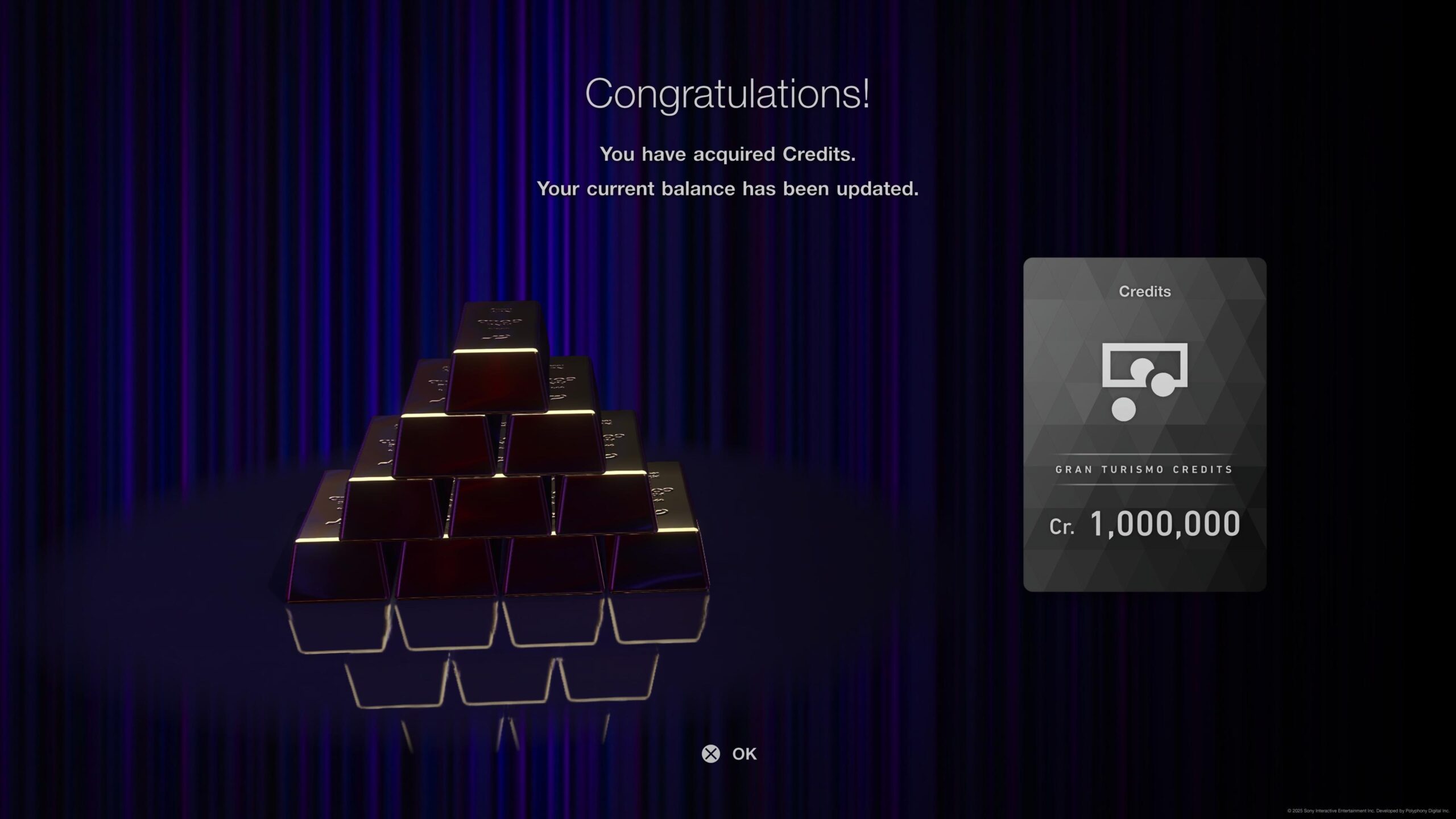
This amount of credits might seem useful but when some cars are valued at 20,000,000 you know there’s a long way to go.
Gran Turismo HUD
As much as I really enjoy Gran Turismo and play the game quite a lot there hasn’t been much on here about it from me. I’m still heading through the game and aiming to complete it, if that is possible. I’m currently stuck on one of the license tests where I have completed the course within 0.05 seconds of the gold target time but haven’t quite made it through that barrier.
I have upgraded to the G390 wheel which supposedly has “true feel” or something like that. All I know is that there is more feedback through the wheel and you can “feel” the limits of the grip a little more and also notice when you might be burning through the tires with late braking and excessive cornering.
Somehow I stumbled across a telemetry display that fits to all types of steering wheel. I thought about it and then ordered one along with a new spring for the brake on the G390 pedals and the current spring is waaaay too tough. The new spring has a progressive feel to it and “feels” better.
The telemetry unit was easy to set up and instantly did a firmware update. You use the browser on your phone to enter your wifi settings and the little box does all the rest. It connects to the PS5 output over wifi via UDP. It would be nice if the PS5 output more details that can be read by the little box, but I’m very happy with the results. The rev LEDs are really useful and give good feedback to my peripharal vision.
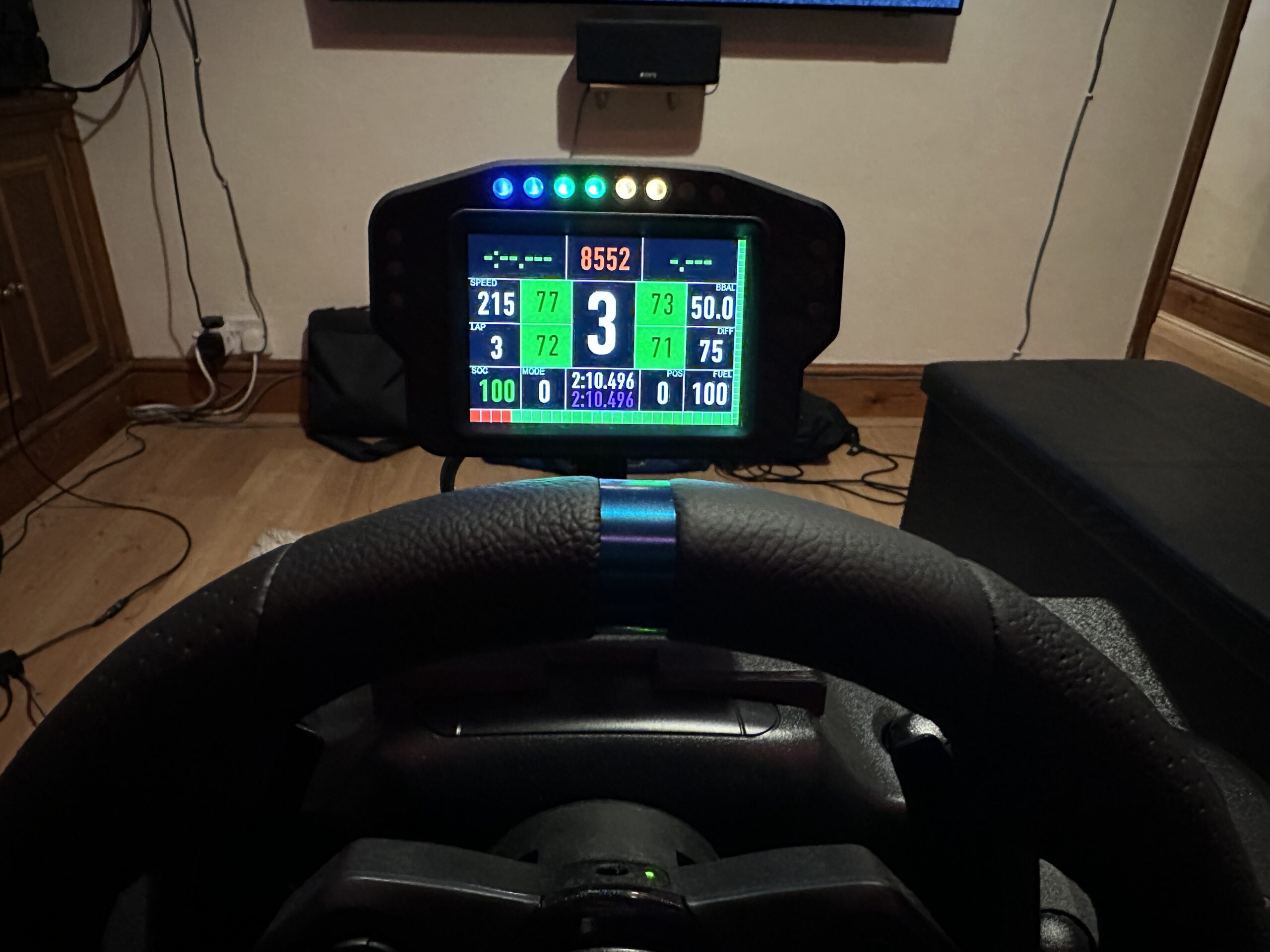
In this image you can see the current gear (3), tyre temperatures, revs (8552), fastest lap time (2:10:496), lap counter and speed. The digits on the right don’t currently change with the game.